If your client has accepted their Estimate, an automated Invoice record is created with details from the Estimate. An Invoice notification will be sent to the client’s email address with a link to view their Invoice online. There is a payment button to pay the Deposit (if applicable) or the remaining balance.
Estimate Review Notification
If the client has accepted or rejected the online Estimate, you will receive a notification indicating the status.
Note that your emails may look slightly different as they are customizable.
If Accepted, follow the link button to edit the Invoice or login to your website and navigate to the Invoice record.
If Declined, you’ll likely need to determine why the client chose to Decline and you may need to edit the Estimate and resend it to the Client.
Example of Estimate Accepted
Example of Estimate Declined
Editing the Invoice
If you didn’t follow the Edit Invoice button link, you’ll need to navigate to the Invoice in the Admin view of your Website.
Go to Invoices, then Invoices again.
Find the related invoice record in the list and select Edit.
Line Items
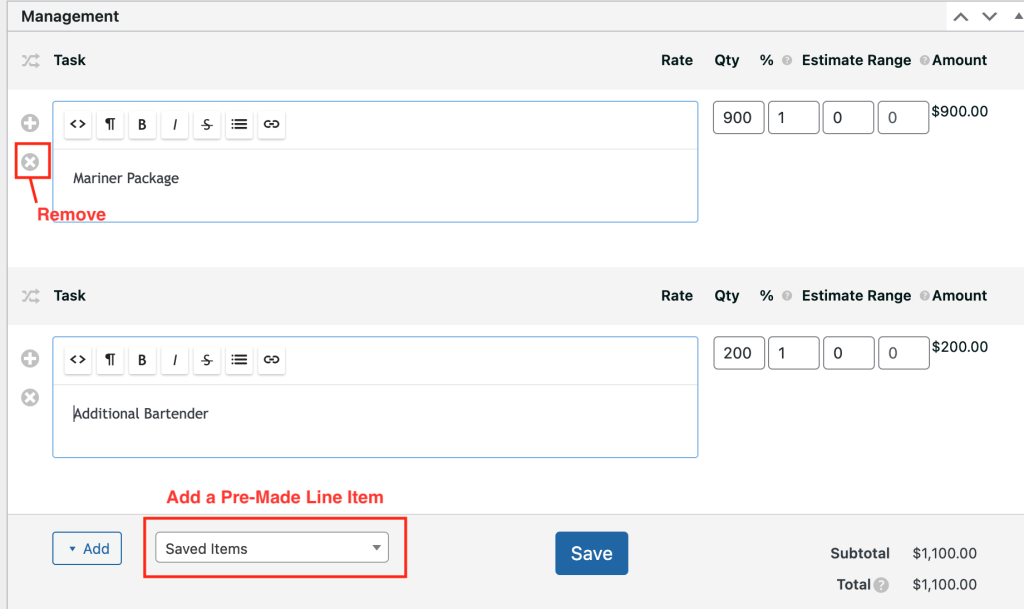
If your Invoice was created by an Accepted Estimate, you shouldn’t have to edit the line items. But they are still editable in case there is a need.
After making any changes, click Save.
New Ad Hoc Invoices
If you need to create an ad hoc invoice record, Select Add Invoices from the Admin column on your website.
Create your line items by selecting the Saved Items drop down.
Edit Rate & Qty, if needed.
Deposits
Deposits are completely optional, depending on your business model. They can be set on the Estimate or the Invoice. If a deposit amount is added to the Estimate and it is accepted by the client, it will automatically be added to the Invoice.
If you didn’t add a deposit on the Estimate, you can still add it on the Invoice.
The New Due Date field does not work. Instead, use the Information section to set the Invoice Due Date. More details are in the Invoice Due Date section below.
Invoice Deposits
Invoice Status
BUG ALERT!
If you don’t change the Invoice Status from Draft/Temp to Pending before you send the Invoice to the Client, they will receive duplicate invoices.
This issue has been reporting and supposedly, Sprout has put this in the backlog for a fix in a future release.
Invoice Due Date
The Invoice Due Date is currently set to 10 days from the time the estimate was created. That likely doesn’t align with your business model, which is why I recommend editing the Invoice before it is sent to the Client.
At this time there is no functionality to supports using your Client’s event date in the Invoice Due Date logic. You will need to update it manually here.
Don’t forget to SAVE if you change the date.
Terms & Notes
Terms & Notes can be set at the Admin level or directly on an individual Invoice.
Terms and Notes are visible to the client on their online Invoice.
To edit Terms and Notes from the Admin level, go to the Sprouts Invoices plugin > General Settings > Invoices
Save Changes
If you want to add custom text for an individual client, make your changes on that client’s Invoice.